> ## Documentation Index
> Fetch the complete documentation index at: https://docs.plantpredict.com/llms.txt
> Use this file to discover all available pages before exploring further.
# How To Activate / Deactivate User Accounts
> How Company Administrators can activate and deactivate user accounts
**Important:** Only **Pending** PlantPredict user accounts can be deleted. Any user account that has ever been activated can only be deactivated—not deleted.
***
## How to Deactivate a User
Deactivating a user requires Company Admin privileges. If you are not a Company Admin, contact your company admin or reach out to [support@plantpredict.com](mailto:support@plantpredict.com) to request admin access.
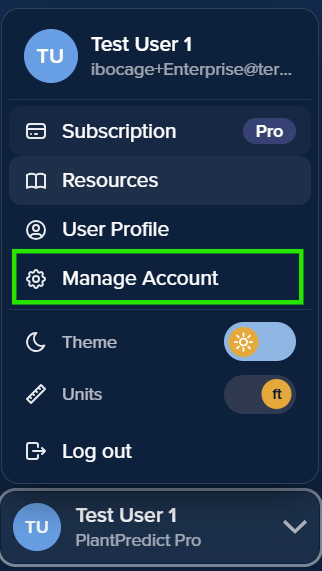
Click your name in the lower left corner of PlantPredict to open the account menu, then select **Manage Account** to access the [Company Settings](/user-guide/ui/company-settings) screen.
 You'll be shown a list of users, click the name of the user you want to deactivate.
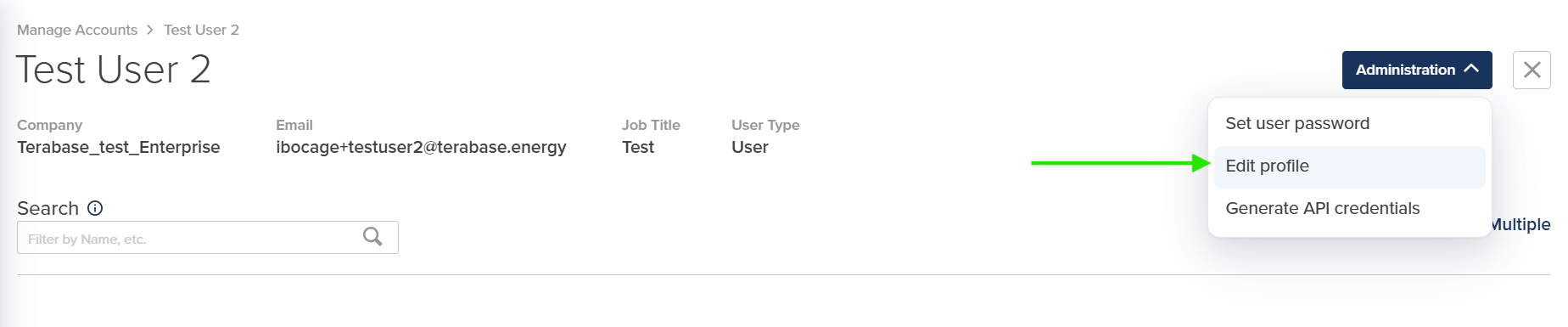
 Click the **Administration** button in the upper right corner of the user's page, then select **Edit profile**.
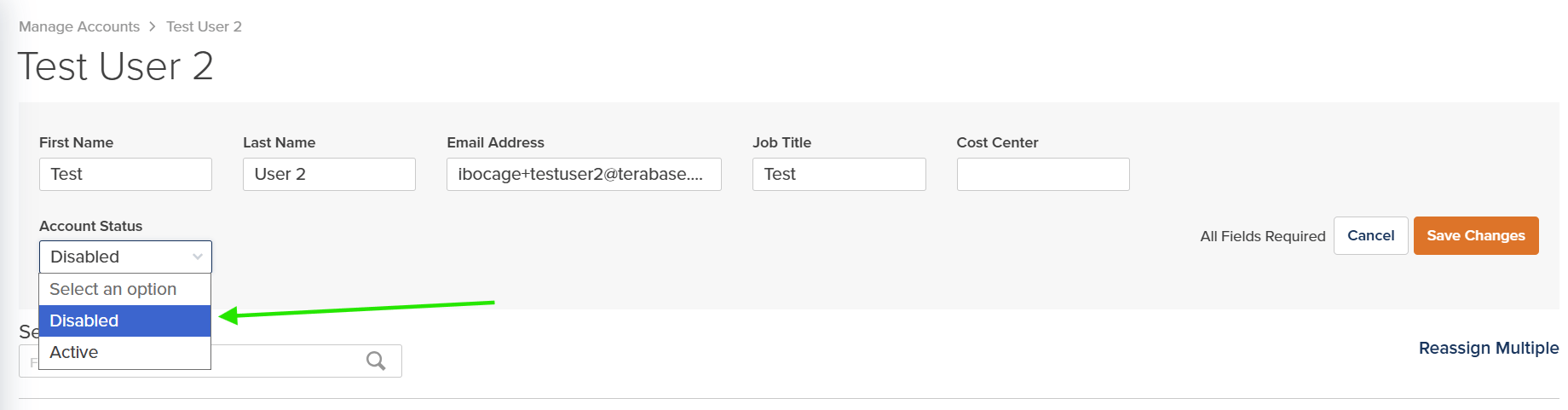
 In the profile form, change the **Account Status** dropdown to **Disabled**.
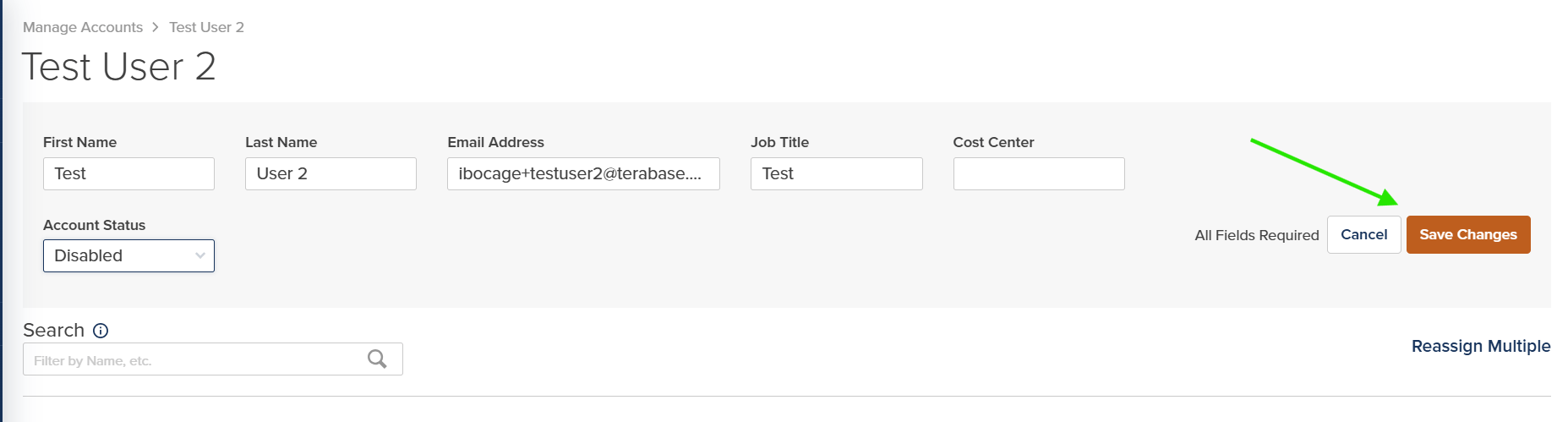
 Click **Save Changes** for the deactivation to take effect. All fields on the form are required, so make sure each one is filled in before saving.
 ***
## How to Reactivate a User
Follow the same steps as above, but set the **Account Status** to **Active** instead of Disabled.
***
## License Considerations
Only **Active** and **Pending** users count against your user license allocation. You can deactivate a user to free up a seat, which can then be assigned to another user.
This documentation is built and hosted on [Mintlify](https://mintlify.com), a developer documentation platform.
***
## How to Reactivate a User
Follow the same steps as above, but set the **Account Status** to **Active** instead of Disabled.
***
## License Considerations
Only **Active** and **Pending** users count against your user license allocation. You can deactivate a user to free up a seat, which can then be assigned to another user.
This documentation is built and hosted on [Mintlify](https://mintlify.com), a developer documentation platform.