

Connect your AI assistant
- Claude
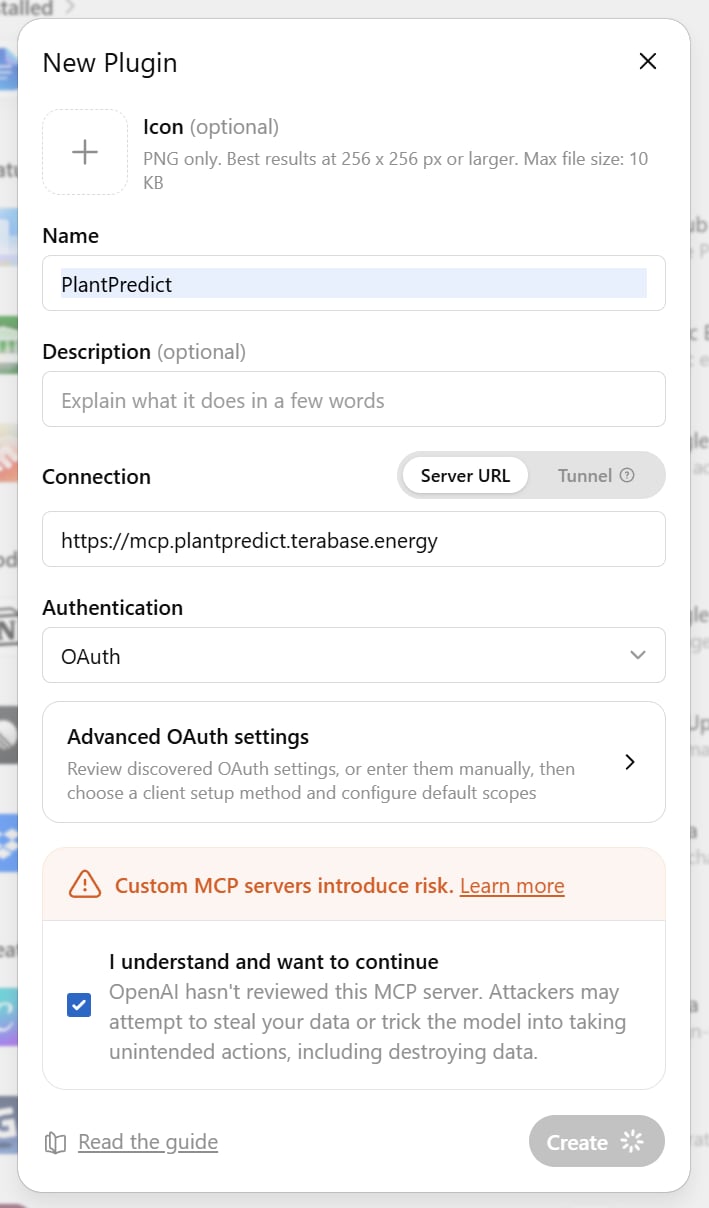
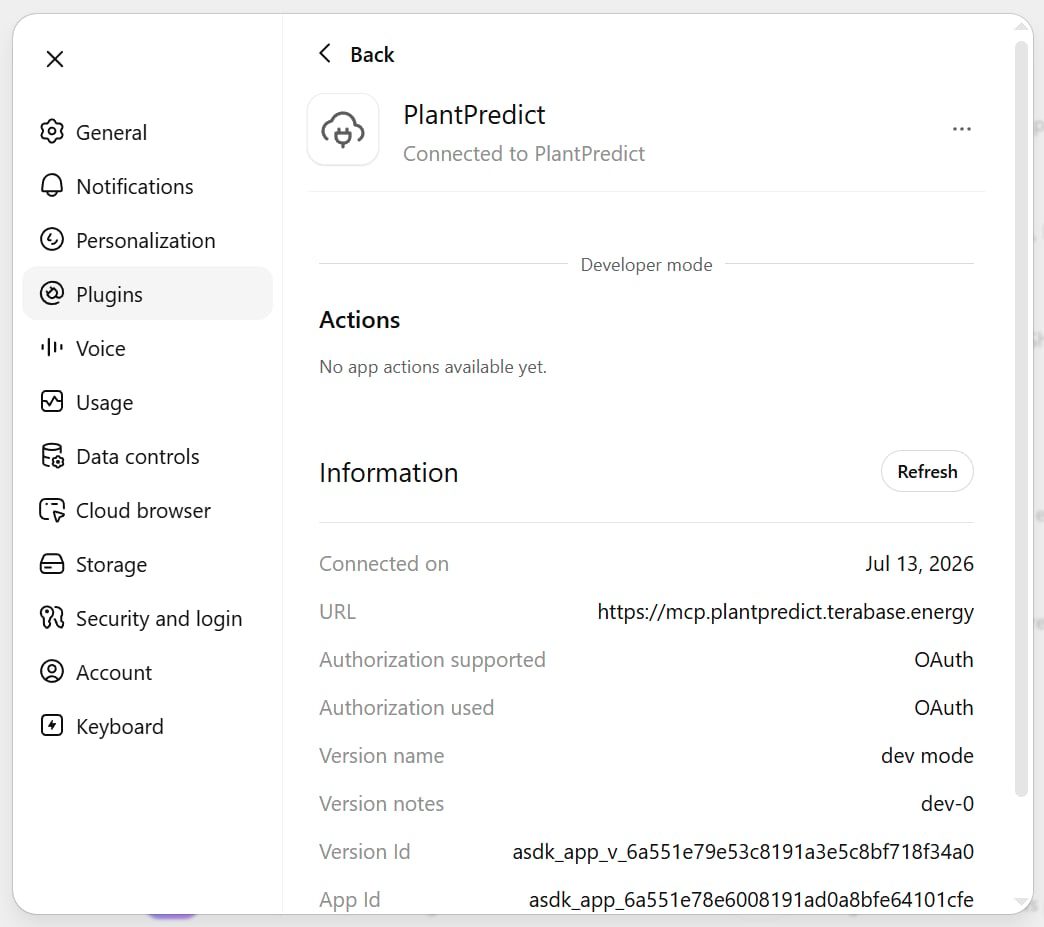
- ChatGPT
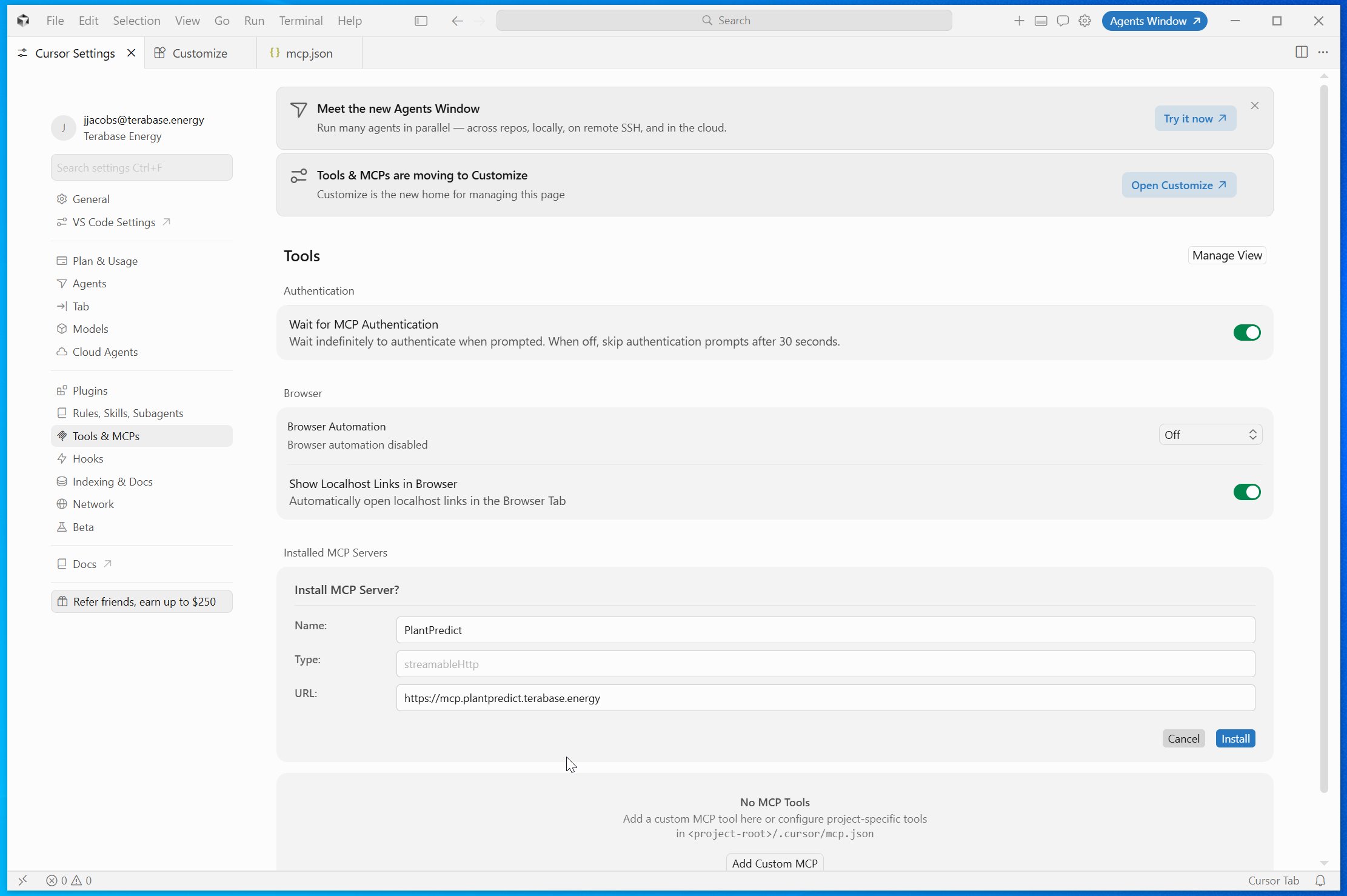
- Cursor
Before you begin
- Use a Claude plan that supports custom connectors — Pro, Max, Team, or Enterprise. (The Free plan cannot add custom connectors.)
- Have your PlantPredict email and password ready — you sign in once during setup.
- Use this connector address when Claude asks for it:
https://mcp.plantpredict.terabase.energy
Connect Claude on the web
Menu names may vary slightly depending on your Claude plan and version, but the flow is the same.Sign in to Claude
Open your connector settings
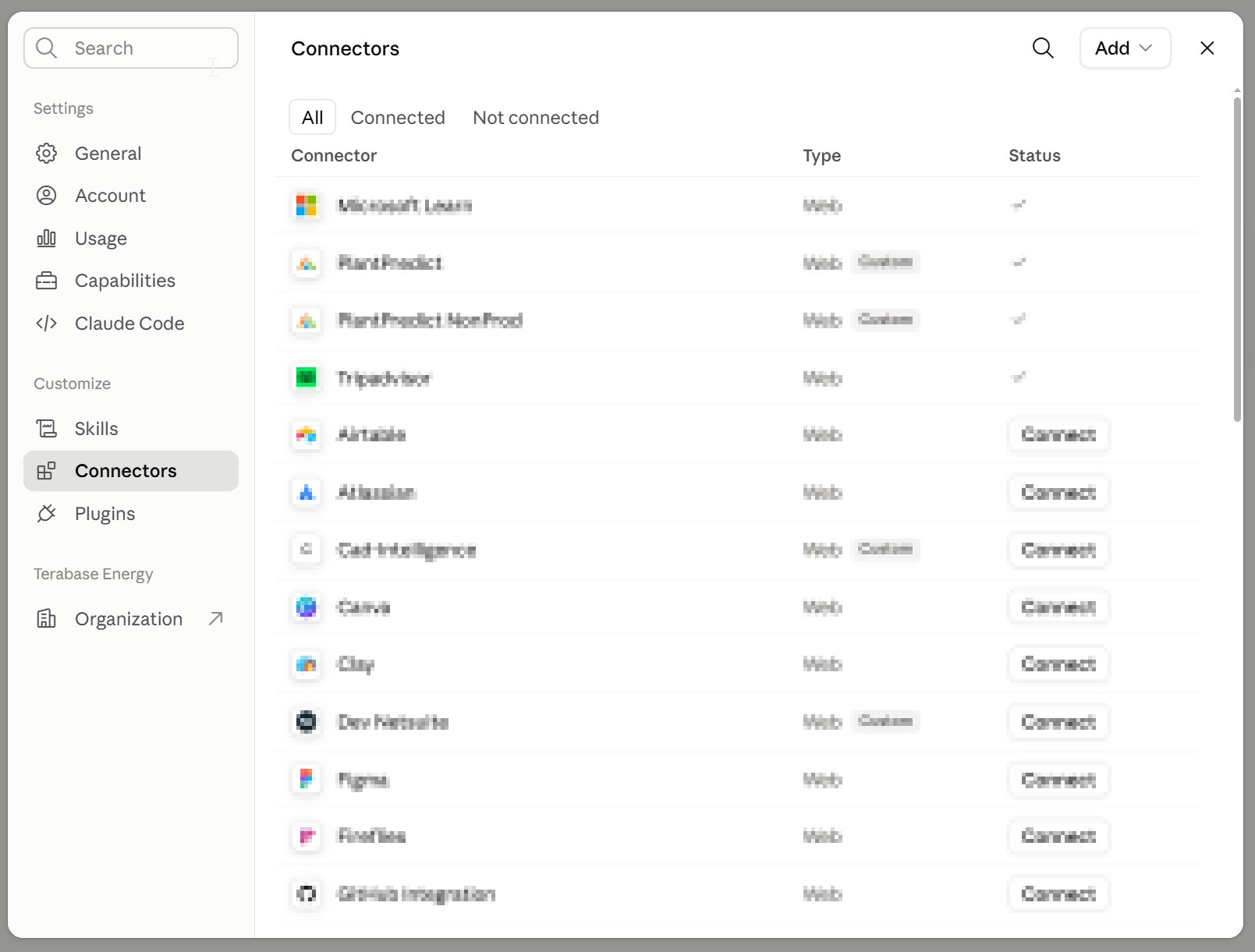
Claude Settings, with the Connectors section open.
Add a custom connector
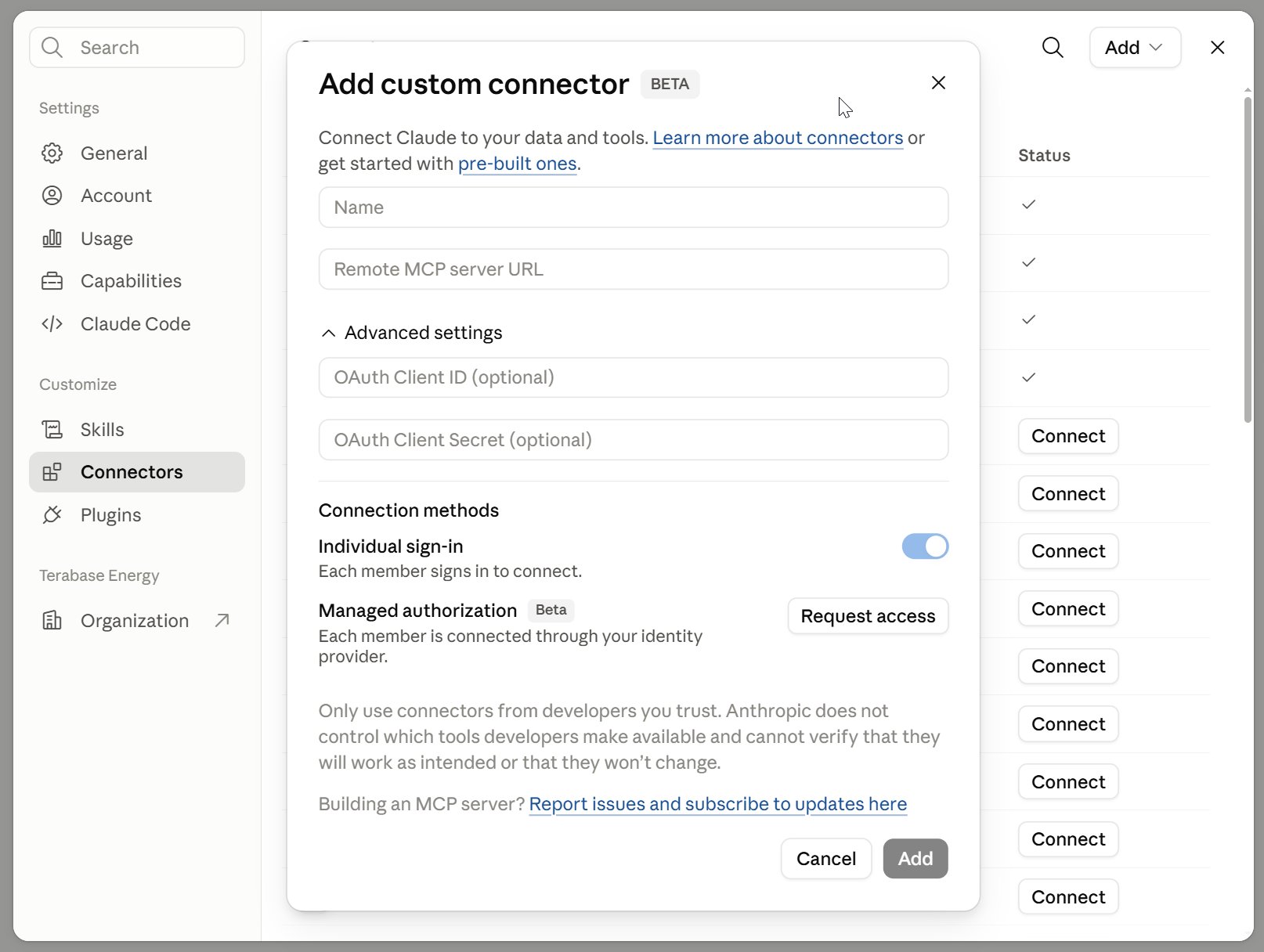
The Add custom connector option in Claude's connector settings.
Enter the connector details
PlantPredict, and paste the connector address into the remote MCP server URL field: https://mcp.plantpredict.terabase.energy. Then click Add.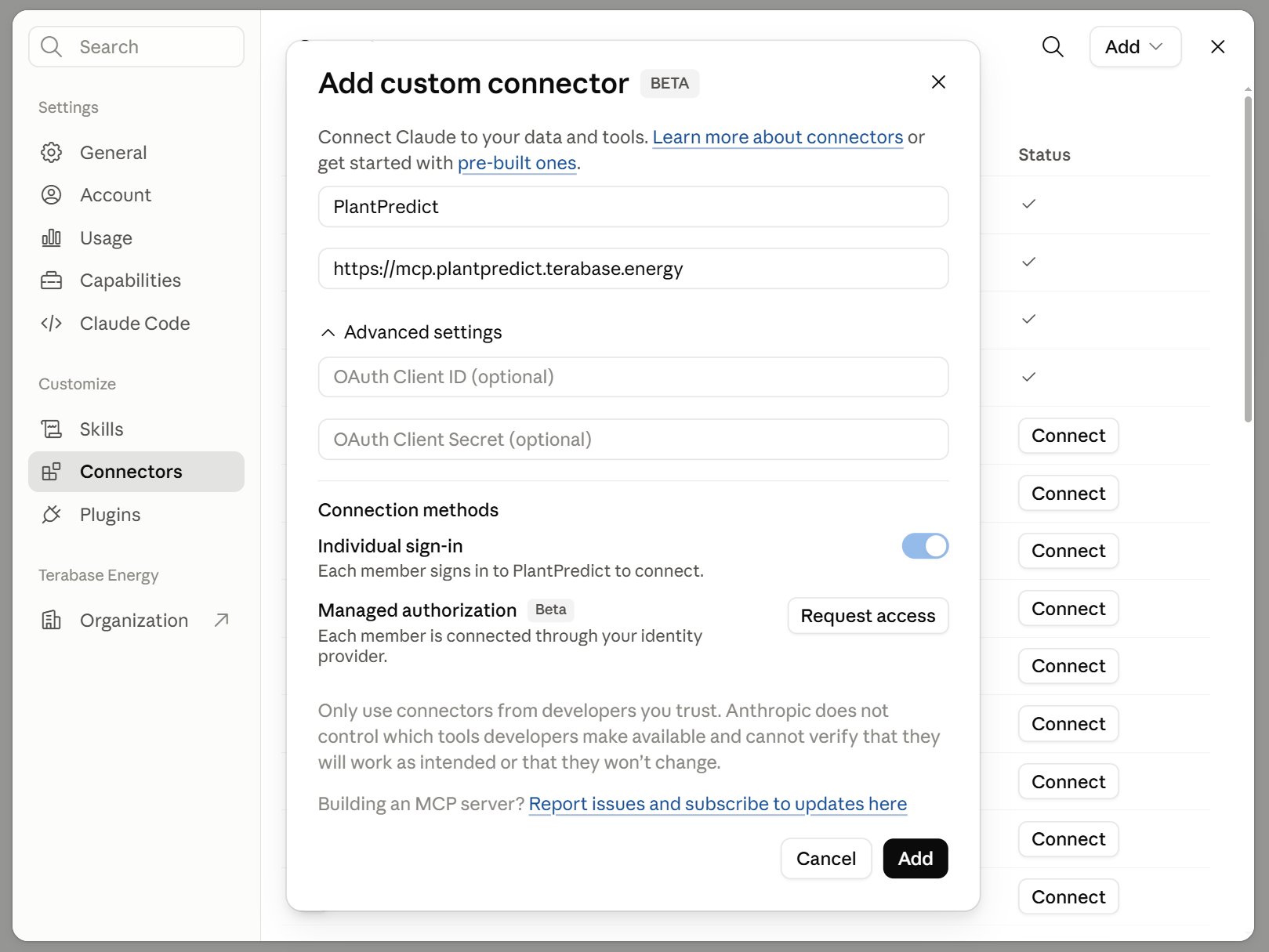
The Add custom connector dialog with the name and connector address filled in.
Sign in with your PlantPredict account
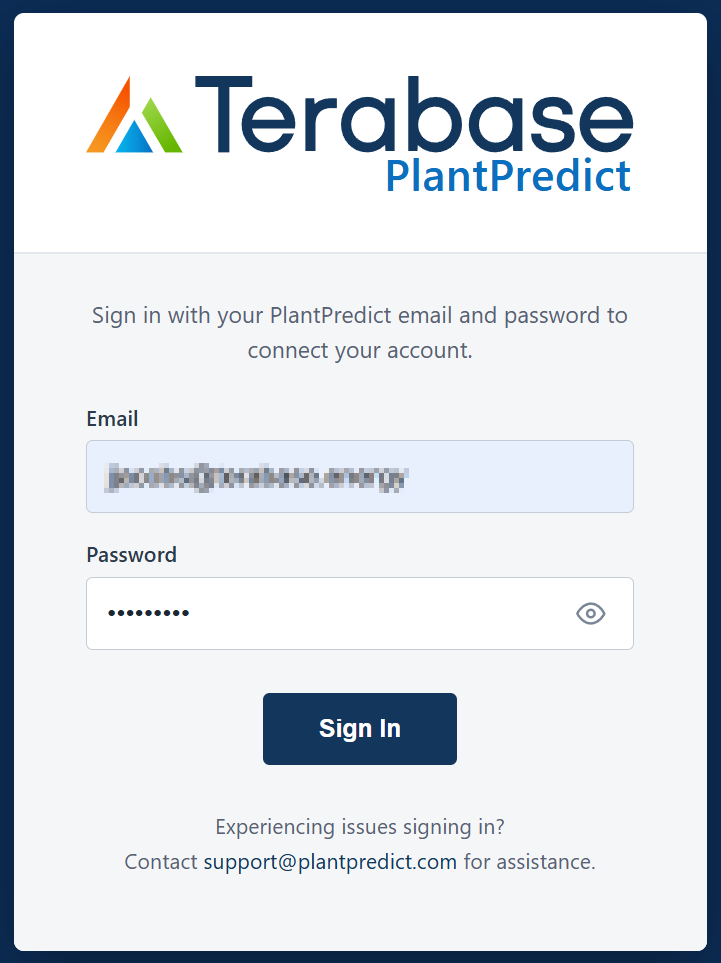
The PlantPredict sign-in window that Claude opens during setup.
Confirm it is connected
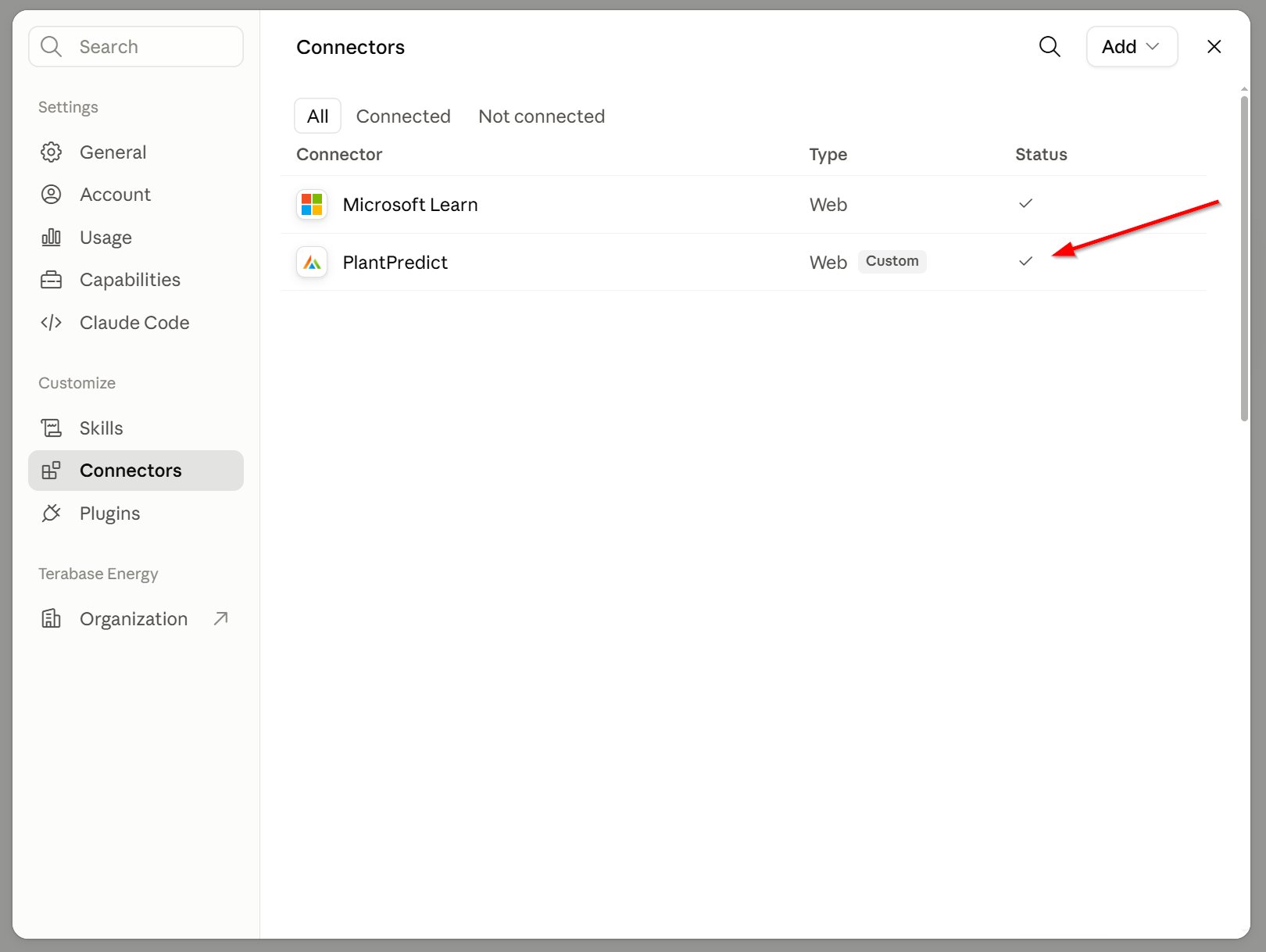
The PlantPredict connector listed as Connected.
Connect the Claude desktop app
The desktop app uses the same steps as the web version:- Open the Claude desktop app and go to Settings, then Connectors.
- Click Add custom connector.
- Enter a name and the same connector address (
https://mcp.plantpredict.terabase.energy), then sign in with your PlantPredict account.
Check that it is working
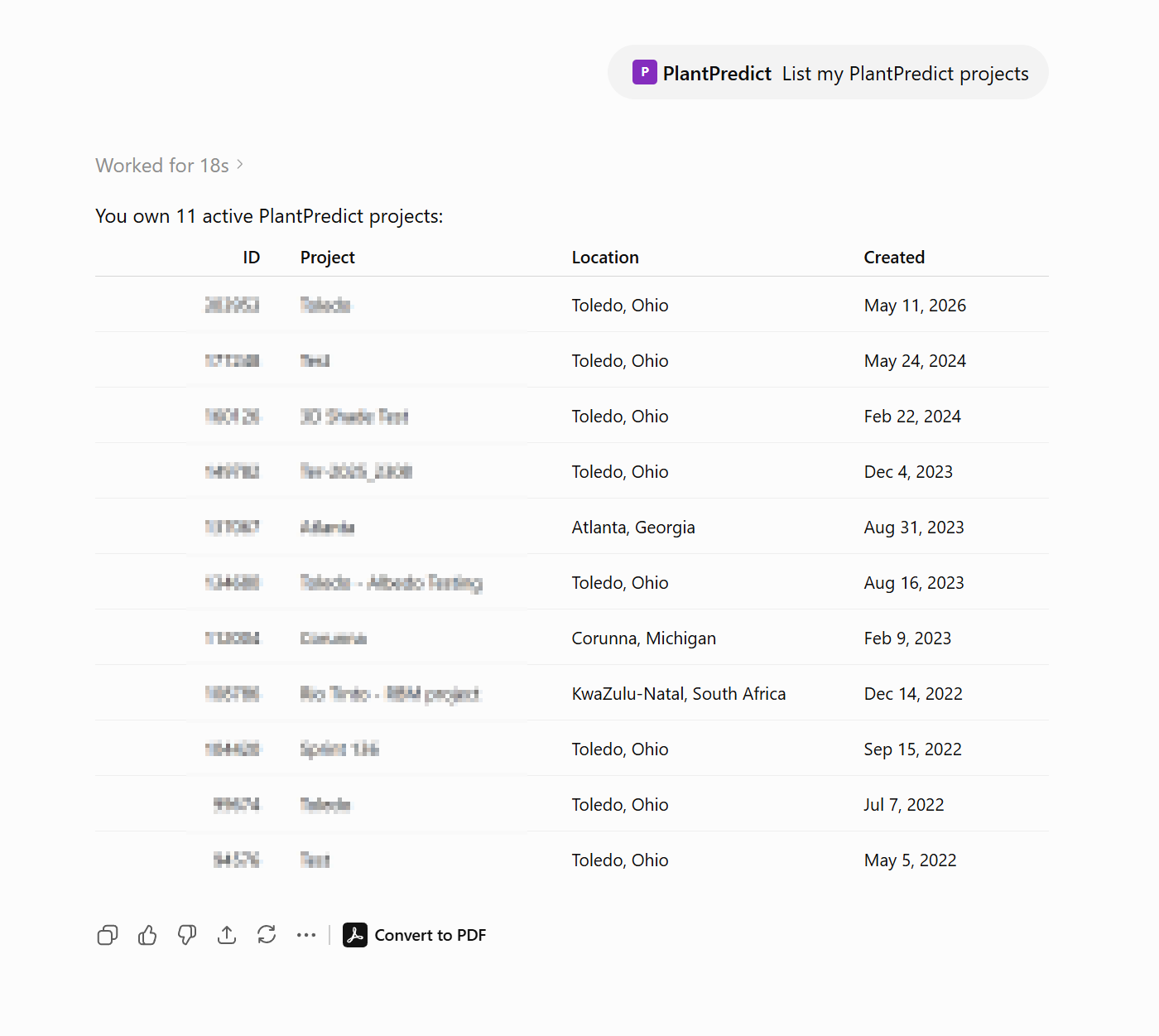
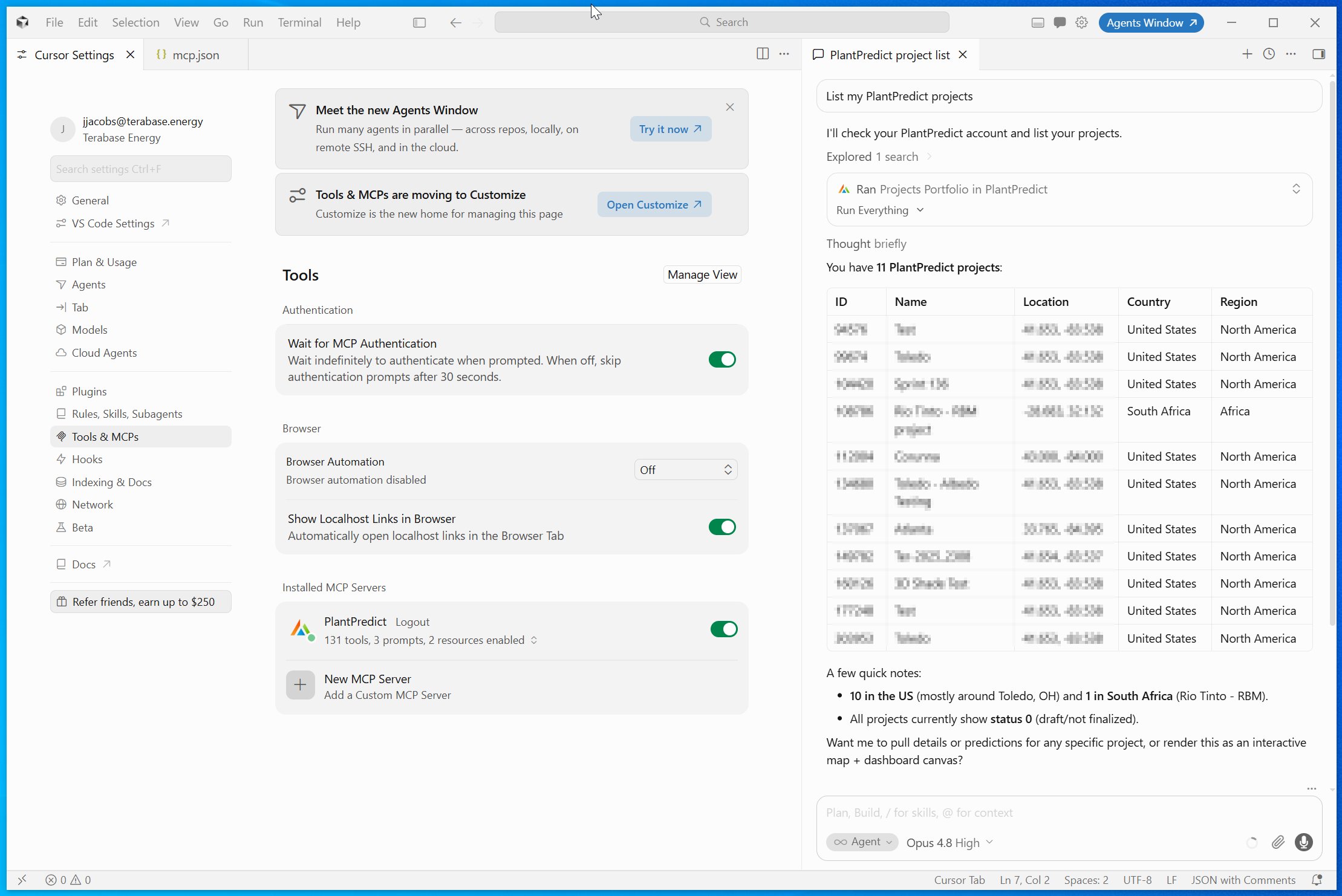
Start a new conversation, make sure the PlantPredict connector is turned on for it, and try a prompt such as:- “List my PlantPredict projects.”
- “Create a new project in Berkeley, CA.”
- “Create a 5 MW prediction in project
<project-id>/<project-name>and run it.” - “Show the summary results for prediction
<prediction-id>/<prediction-name>.”
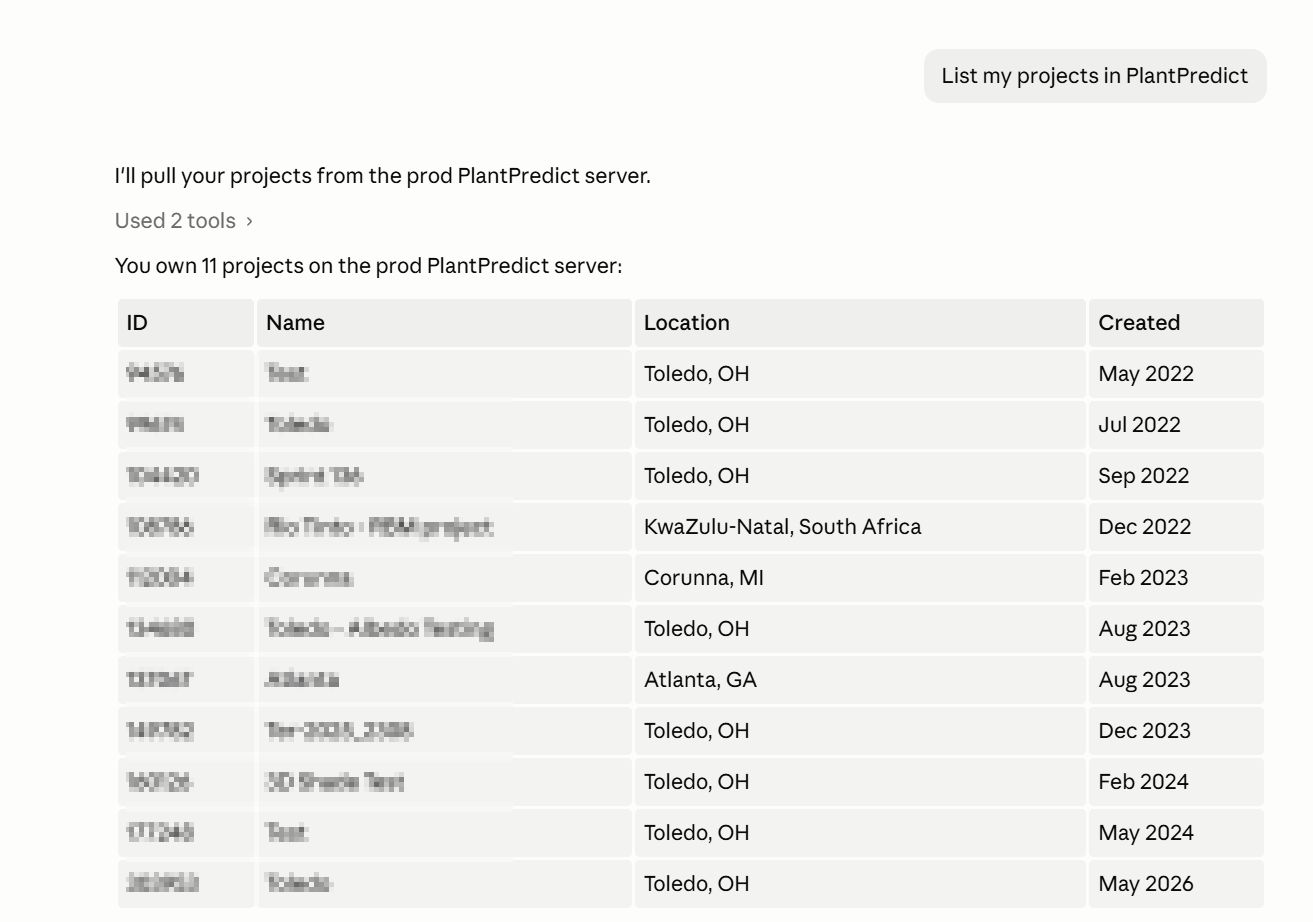
A new conversation using a PlantPredict tool and returning results.
What you can do with it
These sections apply to Claude, ChatGPT, and Cursor alike. Once connected, you can ask your AI assistant to help with tasks such as:- Browse your projects and predictions, and read their results.
- Create, size, and run predictions.
- Import weather files and 3D shade scenes.
- Generate and download reports.
- Look up modules, inverters, and other library items.
Good to know
- It acts as you. Everything your AI assistant does runs under your PlantPredict account and permissions — nothing you could not do yourself.
- Your password is never stored. Only short-lived access tokens are used after you sign in.
- You may need to sign in again occasionally. If prompted, simply reconnect — this is expected.
- Access is limited by region. Connections from US-sanctioned countries are intentionally blocked.
- Claude — new tools appear in a new conversation. If you just connected and do not see PlantPredict tools, start a fresh conversation.
- ChatGPT — turn the connector on in each chat. In a new chat, enable PlantPredict from the connectors or tools menu so ChatGPT can use it.
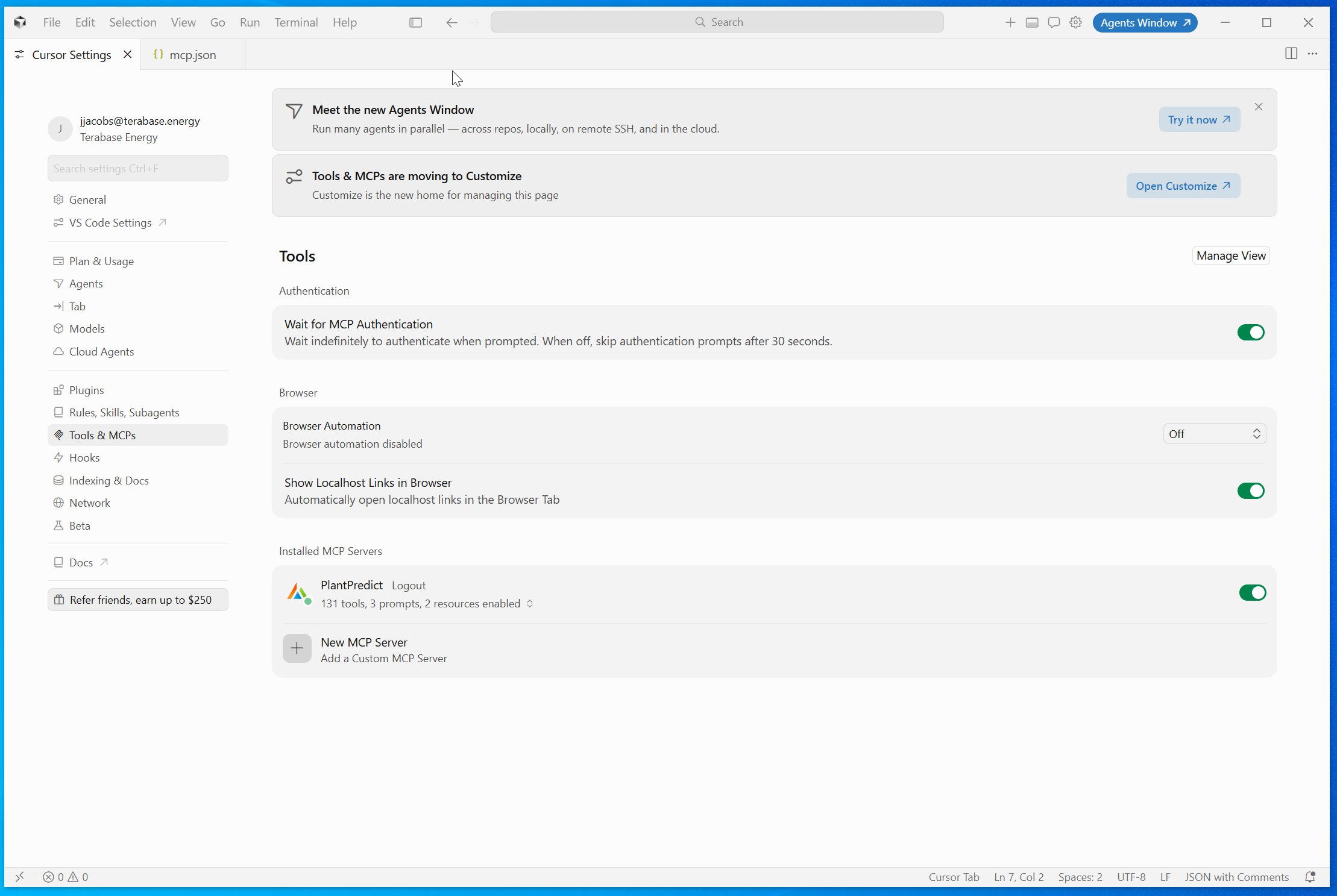
- Cursor — use Agent mode. PlantPredict tools are available to Cursor’s Agent; a plain chat without the Agent will not call them.
- Cursor — you may be asked to approve tool runs. Cursor can prompt before running a tool — approve to continue, or turn on auto-run in settings if you prefer.
If something goes wrong
Most issues have a quick fix:"MCP access is not enabled for your organization."
"MCP access is not enabled for your organization."
"Authentication failed" or an invalid/expired token
"Authentication failed" or an invalid/expired token
You do not see the PlantPredict tools
You do not see the PlantPredict tools
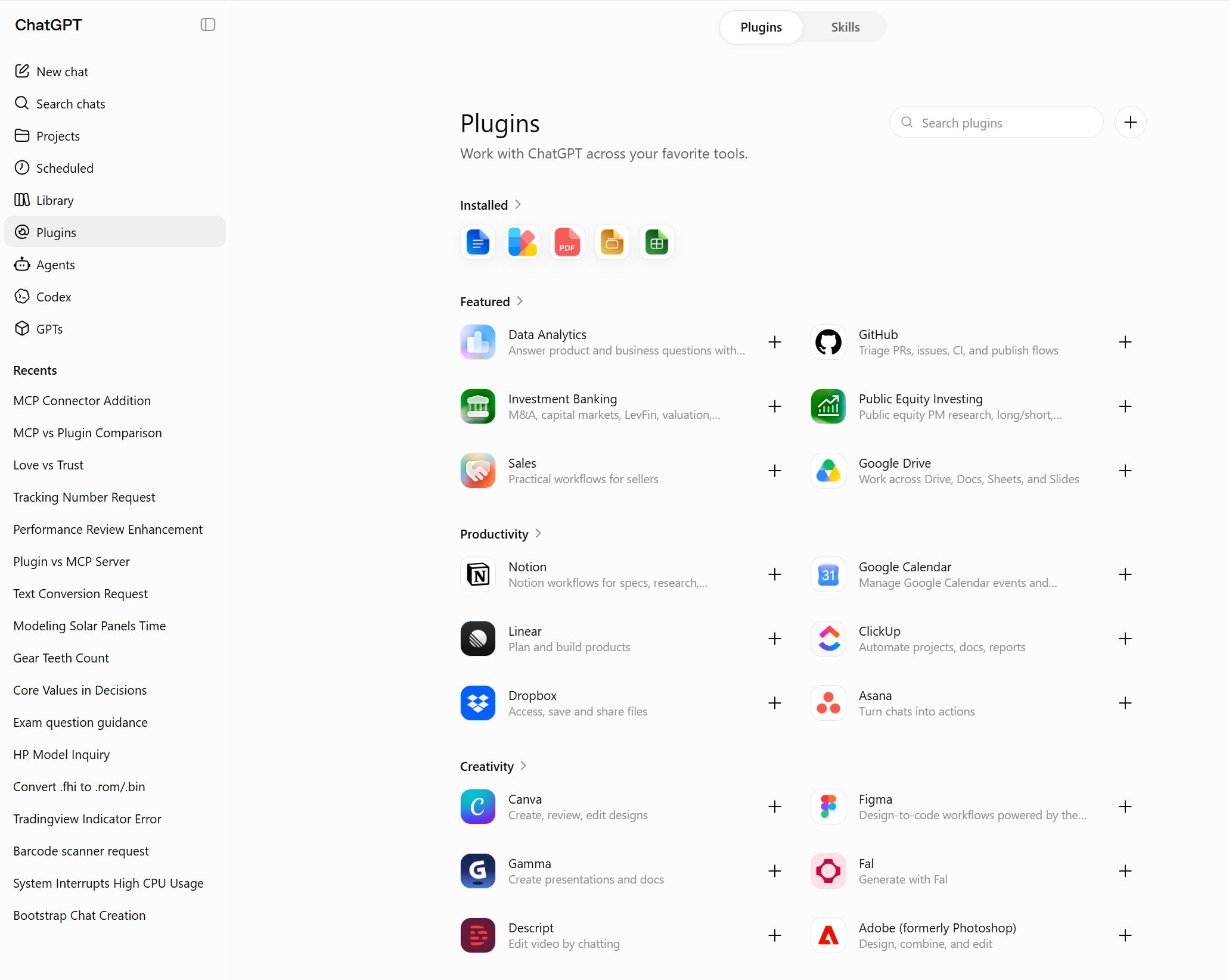
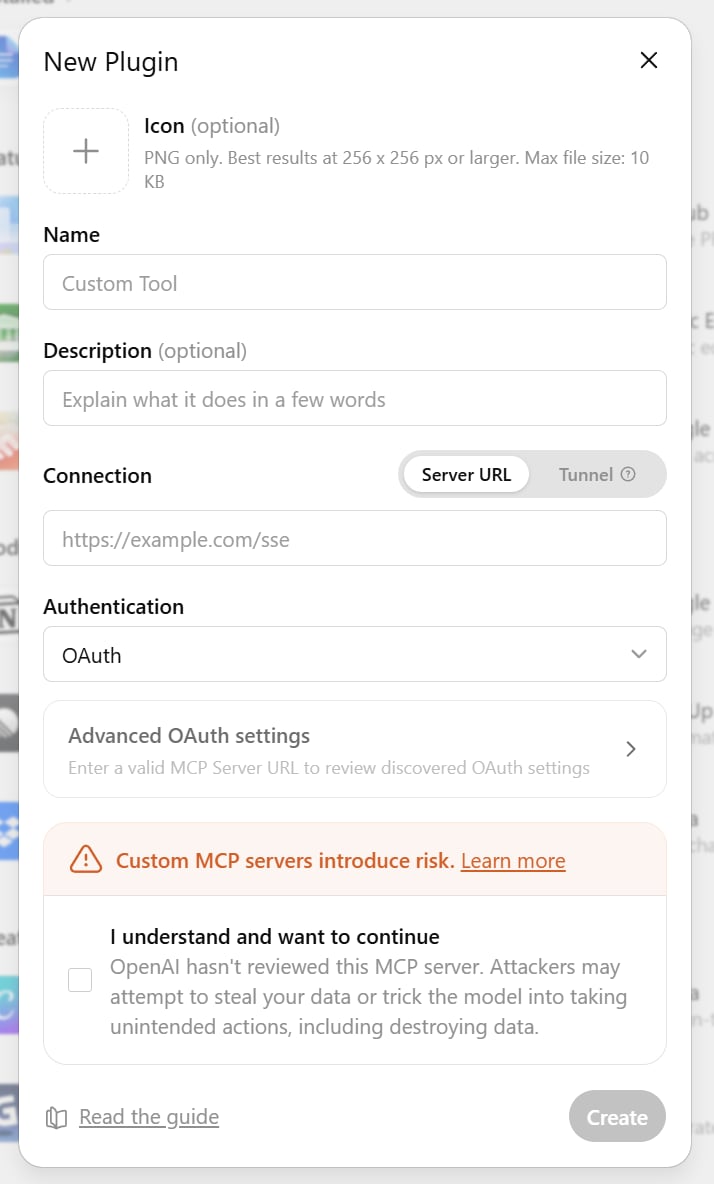
ChatGPT — you do not see the option to add a custom connector
ChatGPT — you do not see the option to add a custom connector
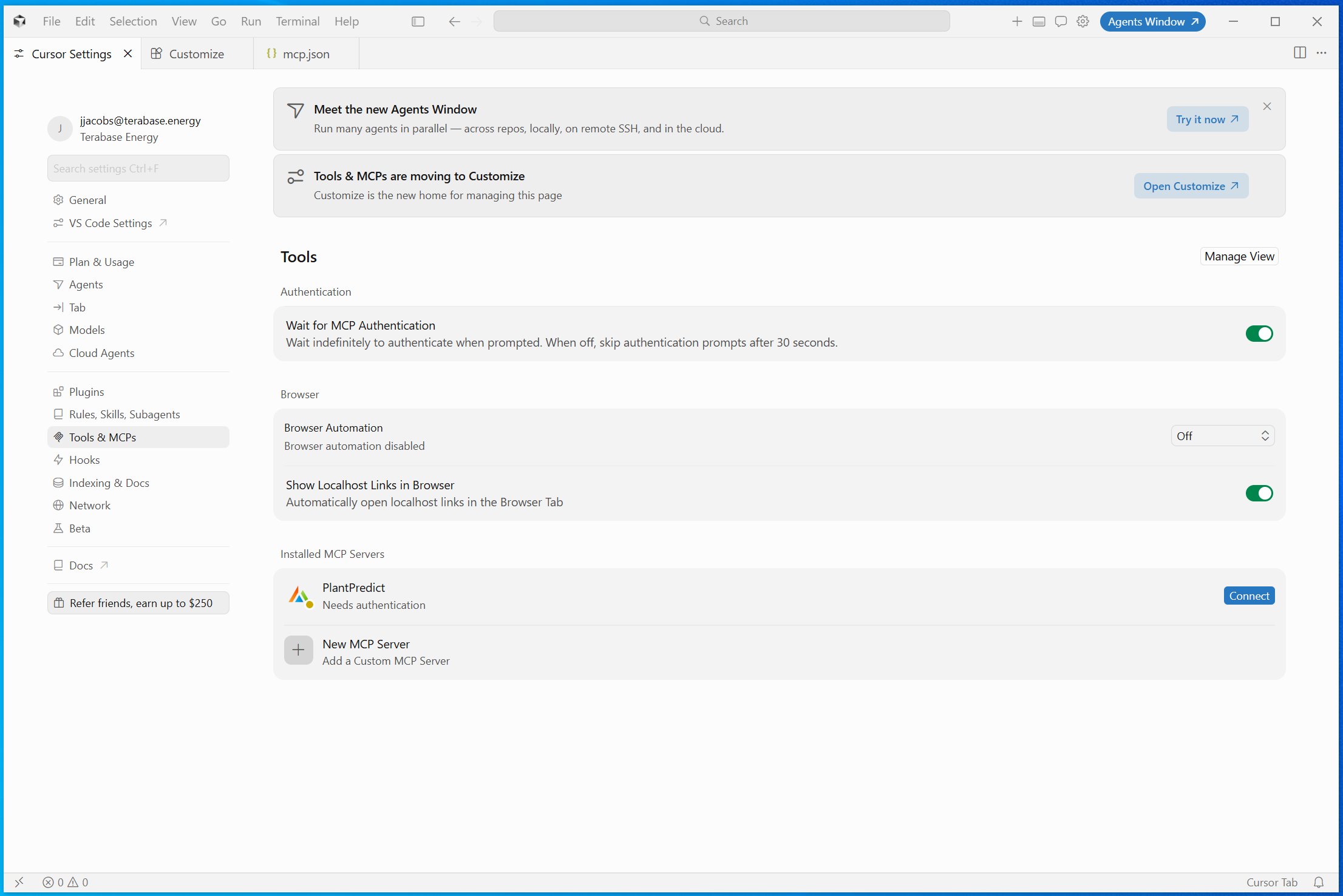
Cursor — the one-click link does not prompt anything
Cursor — the one-click link does not prompt anything
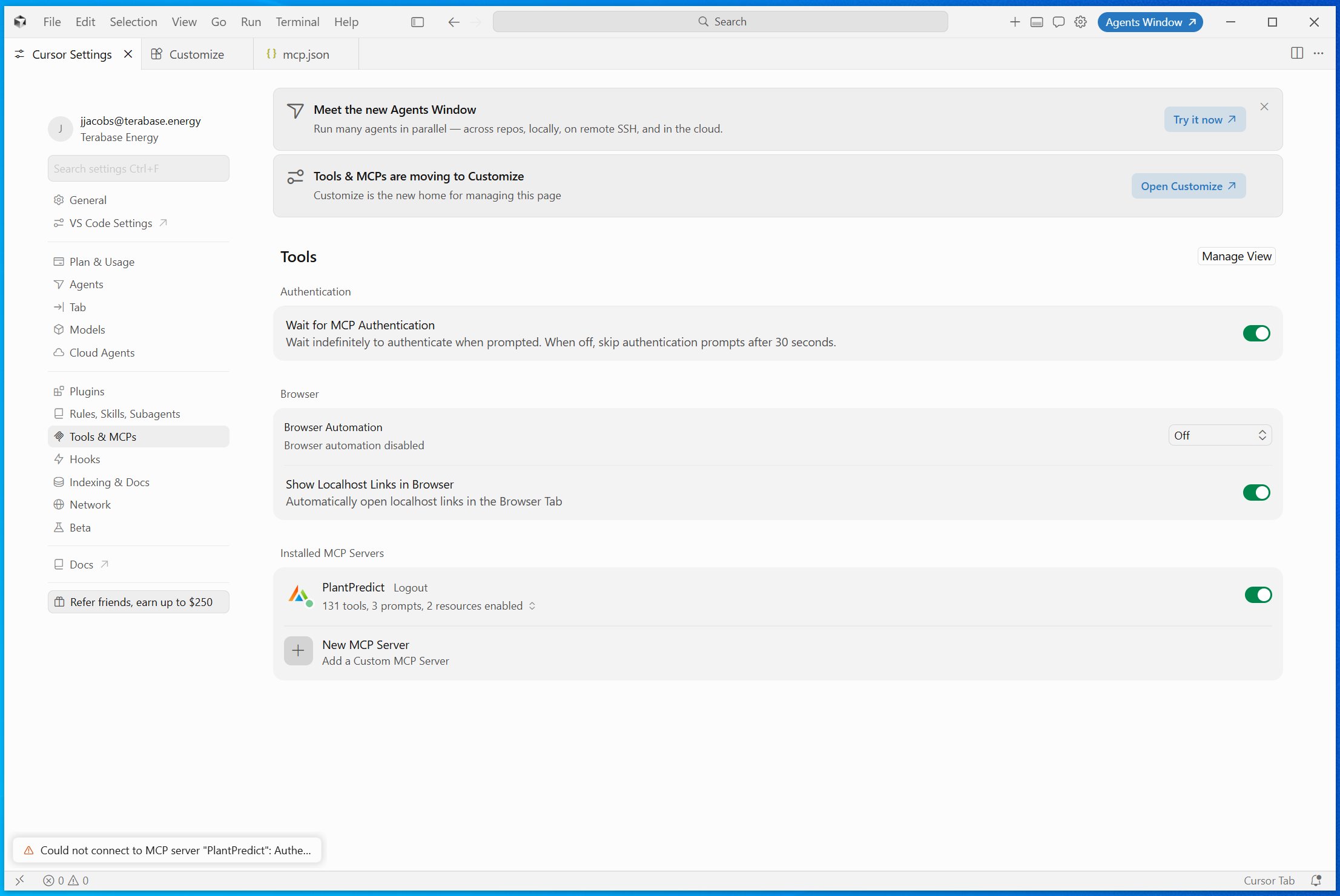
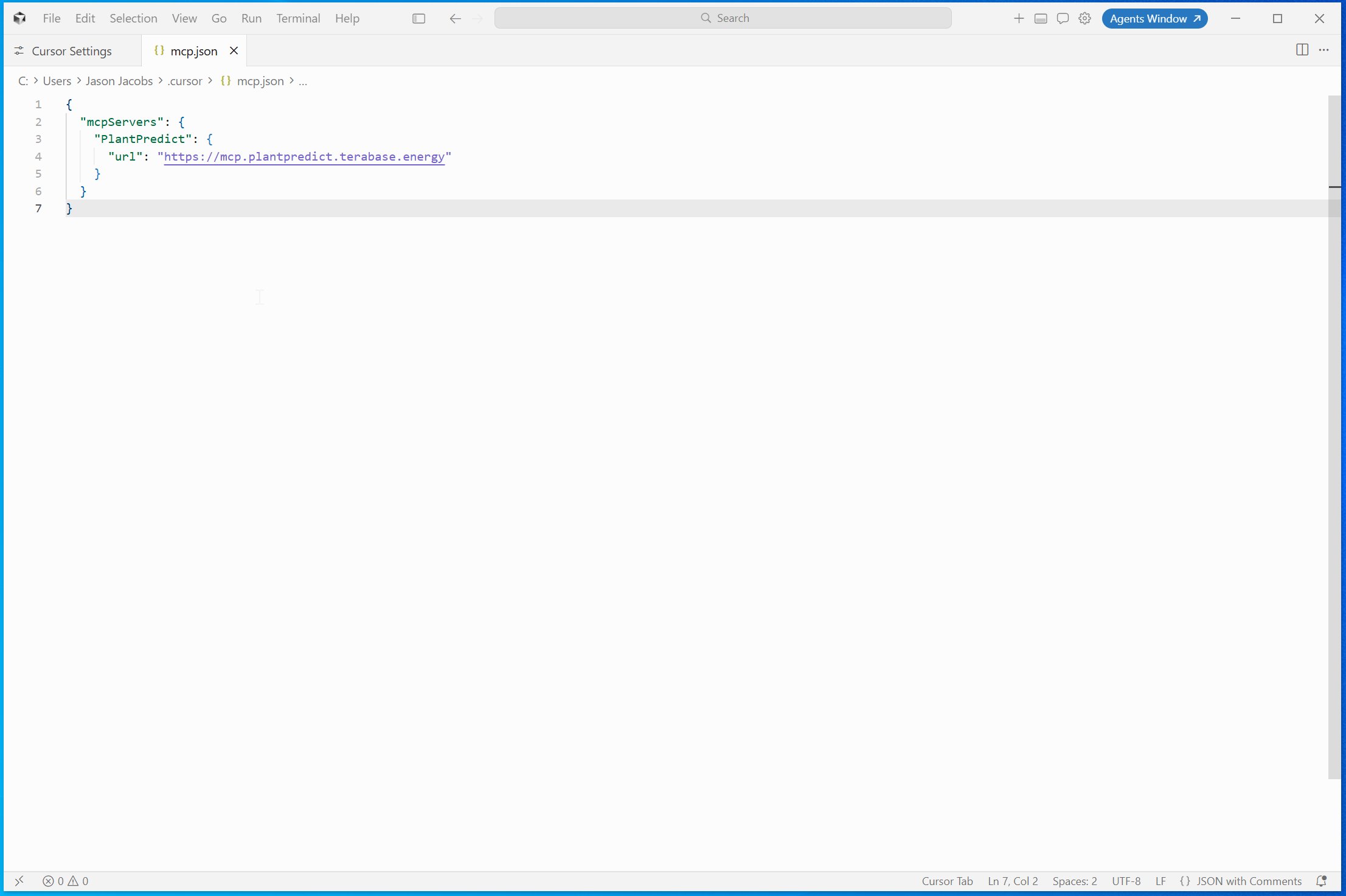
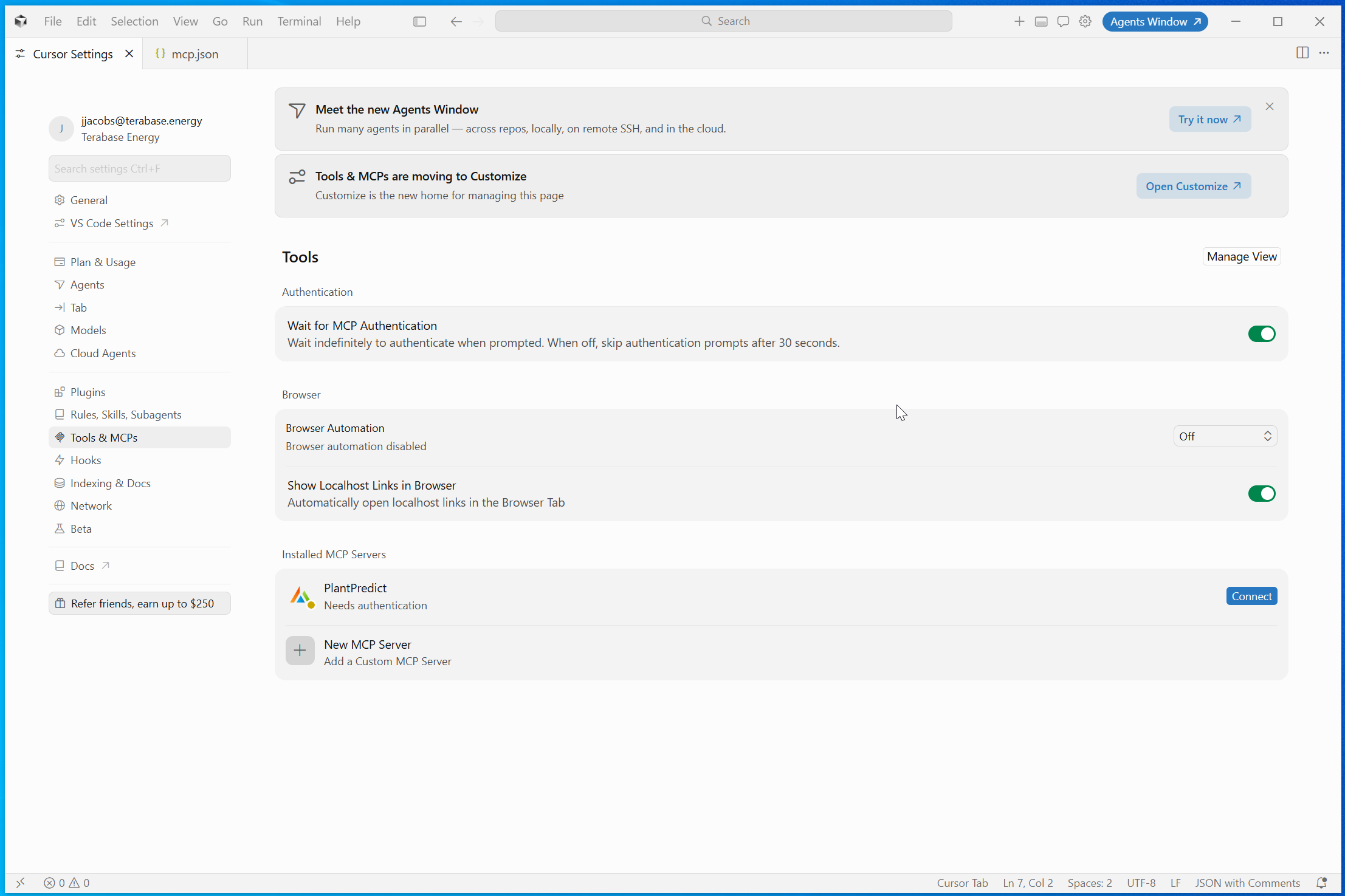
mcp.json.Cursor — the server shows a red dot, "no tools," or will not connect
Cursor — the server shows a red dot, "no tools," or will not connect
mcp.json is exactly the connector address above, and that you completed the Login step for a green, connected status.Access is blocked (error 403)
Access is blocked (error 403)