

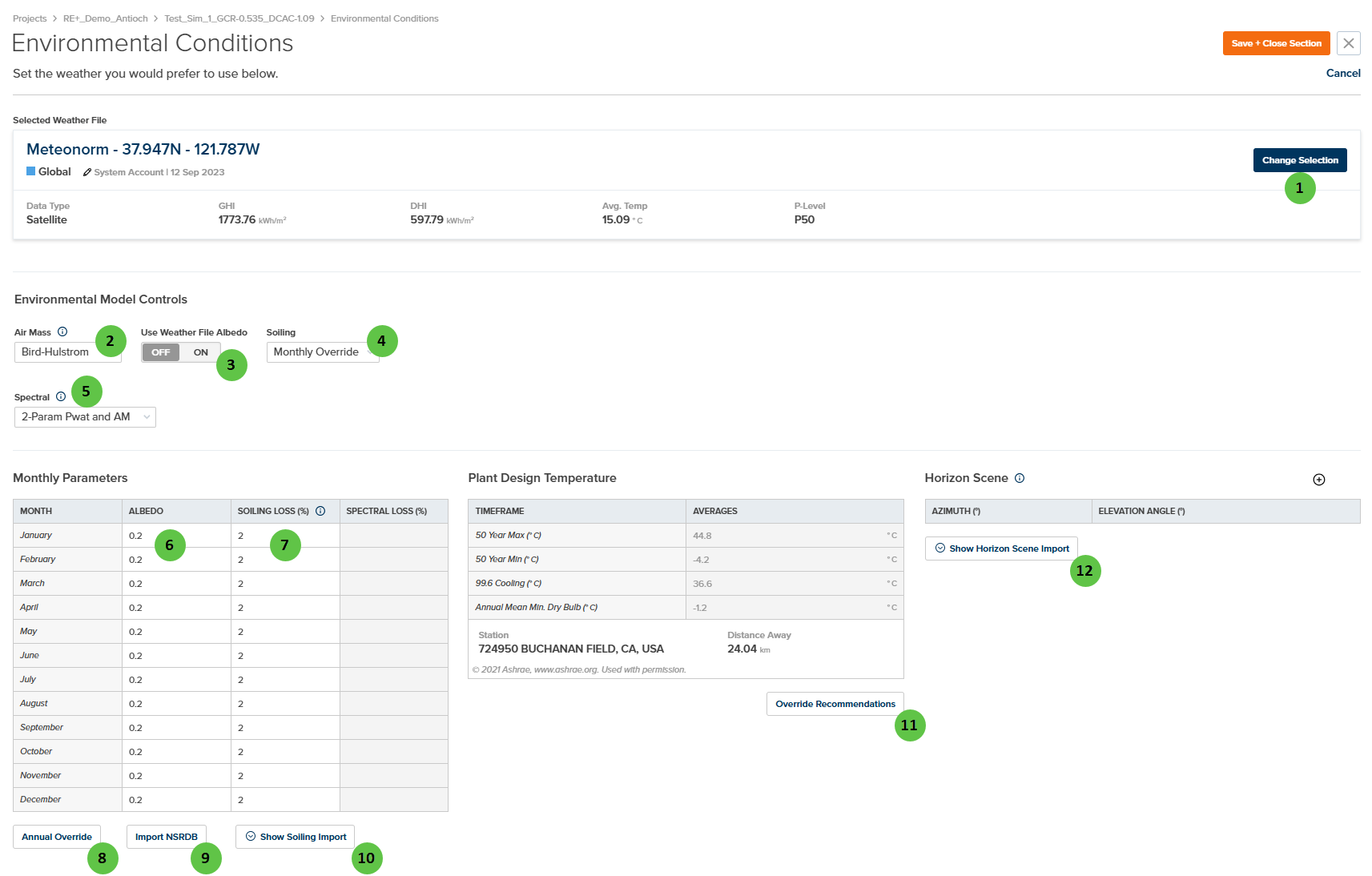
Environmental Conditions Page
Overview
The Environmental Conditions page is organized into four main sections:- Selected Weather File — Displays the currently selected weather file with key metadata (GHI, DHI, average temperature, P-Level) and allows you to change the selection.
- Environmental Model Controls — Configure the algorithmic models used for air mass calculation, albedo sourcing, soiling losses, and spectral shift adjustments.
- Monthly Parameters — Define month-by-month values for albedo, soiling loss, and spectral loss when using monthly override modes.
- Plant Design Temperature & Horizon Scene — Set temperature design points for voltage calculations and import far-field horizon shading data.
User Inputs
| # | Input | Type | Units | Description | Related Documentation |
|---|---|---|---|---|---|
| 1 | Change Selection | Button | — | Opens the weather file selection dialog to choose a different weather file for the prediction. Weather files contain hourly or sub-hourly irradiance, temperature, wind speed, and other meteorological data. | Weather Library, Weather File |
| 2 | Air Mass | Dropdown | — | Selects the air mass calculation model. Options: Bird-Hulstrom or Kasten-Sandia. Air mass quantifies the optical path length through the atmosphere and affects transposition, decomposition, and spectral calculations. | Air Mass Model |
| 3 | Use Weather File Albedo | Toggle | — | When ON, albedo values are read from the weather file (if available). When OFF, user-defined monthly albedo values from the Monthly Parameters table are used. | Bifacial Irradiance |
| 4 | Soiling | Dropdown | — | Selects the soiling loss model. Options: None (no soiling), Monthly Override (user-defined monthly values), or Weather (time-series values from weather file). | Soiling |
| 5 | Spectral | Dropdown | — | Selects the spectral shift adjustment model. Options: None, Monthly Override, 1-Param Pwat or Sandia, 2-Param Pwat and AM (Spectral 2). Spectral adjustments account for module performance variations due to atmospheric conditions. | Spectral Shift Adjustment |
| 6 | Albedo | Table Column | — | Monthly ground reflectance values (0 to 1). Typical values: 0.2 for grass/soil, 0.6+ for snow. Used in bifacial rear-side irradiance calculations and ground-reflected irradiance. | Bifacial Irradiance |
| 7 | Soiling Loss (%) | Table Column | % | Monthly soiling loss percentages (0 to 100%). Represents irradiance reduction due to dust, dirt, and particulate accumulation on module surfaces. Only editable when Soiling model is set to Monthly Override. | Soiling |
| 8 | Annual Override | Button | — | Opens a dialog to set a single annual value that will be applied to all 12 months for albedo and/or soiling loss. Useful for simplified modeling scenarios. | — |
| 9 | Import NSRDB | Button | — | Imports albedo and/or other environmental data from the National Solar Radiation Database (NSRDB) based on the project location. | — |
| 10 | Show Soiling Import | Button | — | Opens the soiling import interface to load soiling loss data from external sources or soiling models. | Soiling |
| 11 | Override Recommendations | Button | — | Opens a dialog to manually override the ASHRAE-derived plant design temperatures. Design temperatures are used for module voltage calculations at temperature extremes. | — |
| 12 | Show Horizon Scene Import | Button | — | Opens the horizon scene import interface to define far-field obstructions (mountains, trees, buildings) that block direct beam irradiance at low sun angles. | Horizon Shading |