

Prediction Configuration Page
Overview
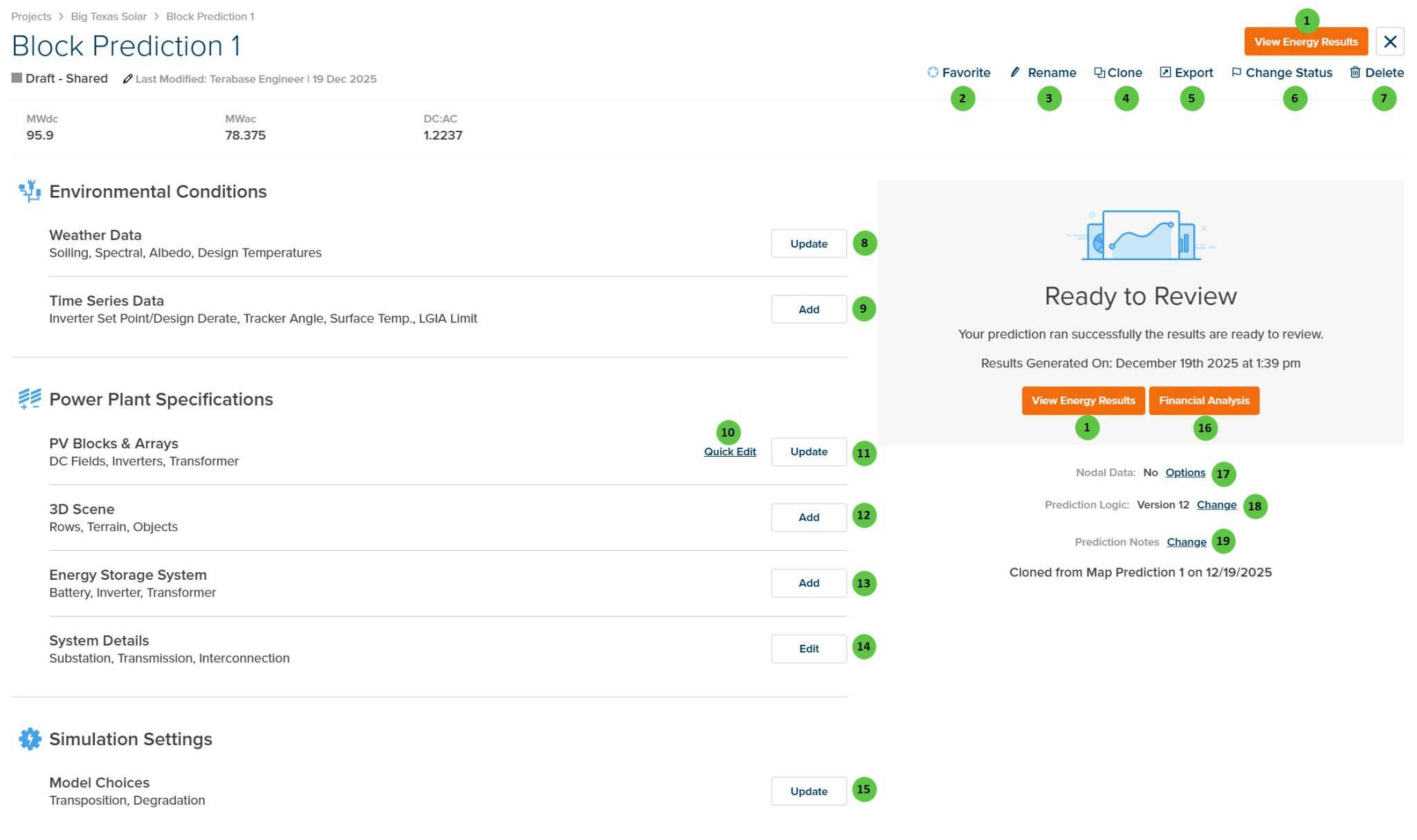
The Prediction Configuration Page is organized into the following sections:- Prediction Header — Displays the prediction name, status, last modified date, and summary capacity metrics (MWdc, MWac, DC:AC ratio). Provides prediction-level action buttons.
- Environmental Conditions — Configure weather data and time series data inputs.
- Power Plant Specifications — Define the physical plant layout including PV blocks & arrays, 3D scene, energy storage system, and system details.
- Simulation Settings — Configure model choices for transposition, degradation, and other algorithmic options.
- Results Panel — Shows prediction run status, provides access to energy results and financial analysis, and displays prediction metadata options.
User Inputs
| # | Input | Type | Units | Description | Related Documentation |
|---|---|---|---|---|---|
| 1 | Run Prediction / View Energy Results | Button | — | Displays Run Prediction if the prediction has not been run, which initiates the simulation. After the prediction completes, changes to View Energy Results to access the results page. | Summary Results |
| 2 | Favorite | Button | — | Toggles the prediction as a favorite for quick access and filtering. | — |
| 3 | Rename | Button | — | Opens a dialog to rename the current prediction. | — |
| 4 | Clone | Button | — | Creates a copy of the current prediction within the same project. | — |
| 5 | Export | Button | — | Exports the prediction data to a downloadable file format. | — |
| 6 | Change Status | Button | — | Opens a dialog to change the prediction status (e.g., Draft, Shared, Active). | — |
| 7 | Delete | Button | — | Deletes the current prediction. This action requires confirmation. | — |
| 8 | Update (Weather Data) | Button | — | Opens the Environmental Conditions Page to configure weather file selection, soiling, spectral, albedo, and design temperatures. | Environmental Conditions |
| 9 | Add (Time Series Data) | Button | — | Opens the Time Series Data configuration to add custom time series inputs such as inverter setpoint/design derate, tracker angle overrides, surface temperature, or LGIA limit. | Time Series Data |
| 10 | Quick Edit (PV Blocks & Arrays) | Button | — | Opens a simplified editor for quick modifications to the PV system configuration without navigating to the full configuration page. | — |
| 11 | Update (PV Blocks & Arrays) | Button | — | Opens the Power Plant Builder to define blocks, arrays, inverters, DC fields, and transformer settings in a single-line diagram view. | Block Overview |
| 12 | Add (3D Scene) | Button | — | Opens the 3D Scene configuration to define row geometry, terrain, and objects for detailed shading analysis. | 3D Scene Overview, 3D Shading |
| 13 | Add (Energy Storage System) | Button | — | Opens the Energy Storage System configuration to add battery storage, inverter, and transformer specifications. | Energy Storage System, Energy Storage Overview |
| 14 | Edit (System Details) | Button | — | Opens the System Details configuration to define substation, transmission, and interconnection settings. | System Details, AC System Losses |
| 15 | Update (Model Choices) | Button | — | Opens the Model Choices configuration to select transposition model, degradation settings, and other simulation algorithm options. | Simulation Settings, Transposition Overview |
| 16 | Financial Analysis | Button | — | Opens the Financial Analysis module to perform economic analysis on the prediction results. Only available after the prediction has been run. | — |
| 17 | Options (Nodal Data) | Link | — | Opens the Nodal Data options to configure which detailed output parameters are generated during the prediction run. | Nodal Data |
| 18 | Change (Prediction Logic) | Link | — | Opens a dialog to change the prediction logic version. Different versions may include updated algorithms or bug fixes. | — |
| 19 | Change (Prediction Notes) | Link | — | Opens an editor to add or modify notes for the prediction. Notes are displayed on the prediction card and can include version history or change descriptions. | — |